Help: Can’t add Markdown Link
-
Hello,
I’m having trouble creating markdown links. I’d like to do something like this:
[Text](omnifocus:///perspective/forecast)
When I write the above in Day One the text doesn’t get transformed into a link.
-
Hi there! After a quick test it is working for me. Which Day One app are you trying to add this link in? (iOS, Mac, Android, Web?)
I noticed there may be an extra slash in the omnifocus uri you are using. Does it help if you use this?
omnifocus://perspective/forecast -
I am having the same problem – links to websites are not creating using the format of [name of link)(URL of site).
I am using version 2024.18 (1590) of Day One.
-
Whoops. The link was supposed to be [name of link](URL of site). That format doesn’t work.
-
Can you let me know what platform you’re on? Markdown is only supported on iOS and macOS. It’s not yet available on Android or the web app. Testing on iOS and macOS, I don’t have any trouble adding a link with the format you’ve shared.
I would also advise you to update to 2024.19, as that is the latest release.
-
I am Day One on both iOS and MacOS. I think I figured out what to do to make the format of [title](URL) turn into a link. You have to click the return button on your keyboard after you have typed in the format of [title](url).
-
Hello @jjohnsonbioman,
After adding the link “[link](URL)” you’ll need to add a space after that last parentheses. This should then convert as expected.
Let us know if that helps.
-
-
I am using the app on a Windows 11 PC, and the methods mentioned above are not working for me. In fact, there is no option to add a link to my entry.
Additionally, the Linking Journal feature is not working on the Windows app.
These are very basic features that any journal app should have, but unfortunately, they are not implemented correctly in the current Windows version.
Please look into this issue.
-
@subarnabsadhukhan Thanks for bringing this up!
We’ll work on this so it will be added soon to the Web and Windows app.
-
We have an update on one of your feature requests.
We’ve just released the feature to copy entry URL and journal URL in the web and Windows apps. You can find these options by clicking on the entry and journal menus (three dots):
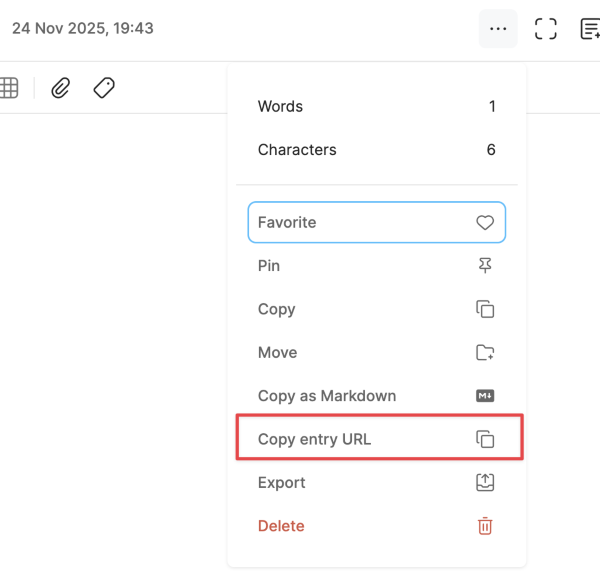
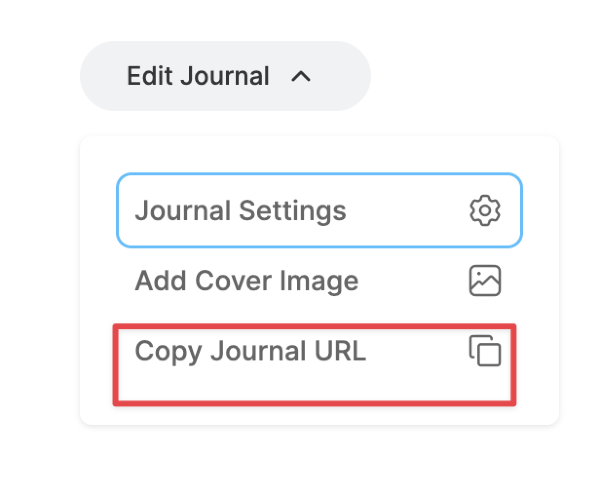
I hope that helps!


 Day One Forums